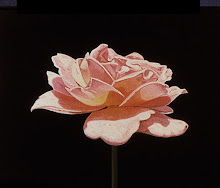
"Birds in Fall" is my latest digital collage art & creative photography series inspired by photographs I took in my neighborhood and travels in upstate New York along the Hudson River.
I hope it captures a love for nature, peace, and freedom!
Please see below photographs of before and after showing my sources of inspiration.
With a digital camera & a few collage elements manipulated in Photoshop, one can make some pretty neat images!
To see more examples from the series please visit my Etsy shop here.
Thursday, March 25, 2010
Friday, February 26, 2010
How to make a torn edge border template in Photoshop using Filters
Looking for a way to add a torn edge effect to a digital image?
In this Step by Step tutorial, I'll will demonstrate how to create a torn edge border template in Photoshop using Quick Mask Mode and built in Photoshop Filters.
Note: This tutorial was made using Photoshop CS2 so if you have a later version some of the screenshots or steps might differ slightly.
Steps:
1. To begin, open an image you want to work on.
I will use this digital collage image I made in Photoshop of a Honey Bee.
2. Under Edit > Preferences > select Grid, Guides & Preferences.
3. Under Grid section and Gridlines every: enter the distance you want between each gridline (you can use pixels or inches) I used .5 inches in this case.
4. Go to View menu > Show Grid - you will see the gridlines pop up. (Make sure that 'Snap' under the View menu is checked).
5. Then use the Rectangular Marquee tool and drag along the gridlines to make a selection. You'll notice the selection will snap to the gridlines - this way it will create an even 0.5 inch border along the edge of the photo.
6. Then click the 'Edit In Quick Mask Mode button' (as shown in the picture) on the Toolbox (or press the letter Q on the keyboard).
7. Notice the area outside the selection appears with a red overlay. Think of it as red masking tape that is protecting the edge of the image. The edges where the mask and the unmasked area meet will be the area that will be affected when the filter is applied.
8. Let's apply the Spatter Filter to create a simple torn edge. Select Filter > Brush Strokes > Spatter from the Main Menu Bar.
9. In the Spatter dialog box, you'll see a preview of the filter.
Adjust the Spray Radius and Smoothness of your brush to your preference by moving the sliders. For this image I selected Spray 8 and Smoothness 4.
When you're ready, click the OK button.
You'll notice the red mask has the Spatter Filter applied to it.
Note: If you want to increase the effect of the filter, press (Ctrl + F) in Windows).
11. When you've happy with the results click the 'Edit In Standard Mode button' (as shown) on the Toolbox or again press the letter Q.
You'll notice the selection with marching ants.
12. Select select [SHIFT + Ctrl + N] or then New Layer icon from the Layers Palette and create a new empty Layer above your image.
13. Then select the inverse of your selection by choosing Select > Inverse from the Main Photoshop menu or by pressing [Ctrl + Shift + I] in Windows.
14. Then select [Edit + Fill] or select [Alt + Backspace] to fill the area with color.
I choose Black in this case.
Then, select [Ctrl + D] or Select > Deselect
Lower the Opacity on the New Layer with the Black Border. I used 50% Opacity.
16. You can use this torn edge border as a template and layer over any image!
17. Here is another example using the template and filling it with a light brown color at 100 % opacity to match the image.
In the following tutorial I'll show how to use the torn edge border template to create a Clipping Mask that you can apply and reuse for any photo.
This is my finished version applying this very same technique using a combination Photoshop Filters in Quick Mask Mode. Experiment with the Built in Photoshop Filters in Quick Mask mode to see what effects you can get.
You can see more examples in my shop here under Nature/Landscape section.
In this Step by Step tutorial, I'll will demonstrate how to create a torn edge border template in Photoshop using Quick Mask Mode and built in Photoshop Filters.
Note: This tutorial was made using Photoshop CS2 so if you have a later version some of the screenshots or steps might differ slightly.
CLICK ON IMAGES TO VIEW LARGER
Steps:
1. To begin, open an image you want to work on.
I will use this digital collage image I made in Photoshop of a Honey Bee.
2. Under Edit > Preferences > select Grid, Guides & Preferences.
3. Under Grid section and Gridlines every: enter the distance you want between each gridline (you can use pixels or inches) I used .5 inches in this case.
4. Go to View menu > Show Grid - you will see the gridlines pop up. (Make sure that 'Snap' under the View menu is checked).
5. Then use the Rectangular Marquee tool and drag along the gridlines to make a selection. You'll notice the selection will snap to the gridlines - this way it will create an even 0.5 inch border along the edge of the photo.
6. Then click the 'Edit In Quick Mask Mode button' (as shown in the picture) on the Toolbox (or press the letter Q on the keyboard).
7. Notice the area outside the selection appears with a red overlay. Think of it as red masking tape that is protecting the edge of the image. The edges where the mask and the unmasked area meet will be the area that will be affected when the filter is applied.
8. Let's apply the Spatter Filter to create a simple torn edge. Select Filter > Brush Strokes > Spatter from the Main Menu Bar.
9. In the Spatter dialog box, you'll see a preview of the filter.
Adjust the Spray Radius and Smoothness of your brush to your preference by moving the sliders. For this image I selected Spray 8 and Smoothness 4.
When you're ready, click the OK button.
You'll notice the red mask has the Spatter Filter applied to it.
Note: If you want to increase the effect of the filter, press (Ctrl + F) in Windows).
11. When you've happy with the results click the 'Edit In Standard Mode button' (as shown) on the Toolbox or again press the letter Q.
You'll notice the selection with marching ants.
12. Select select [SHIFT + Ctrl + N] or then New Layer icon from the Layers Palette and create a new empty Layer above your image.
13. Then select the inverse of your selection by choosing Select > Inverse from the Main Photoshop menu or by pressing [Ctrl + Shift + I] in Windows.
14. Then select [Edit + Fill] or select [Alt + Backspace] to fill the area with color.
I choose Black in this case.
Then, select [Ctrl + D] or Select > Deselect
Lower the Opacity on the New Layer with the Black Border. I used 50% Opacity.
16. You can use this torn edge border as a template and layer over any image!
17. Here is another example using the template and filling it with a light brown color at 100 % opacity to match the image.
In the following tutorial I'll show how to use the torn edge border template to create a Clipping Mask that you can apply and reuse for any photo.
This is my finished version applying this very same technique using a combination Photoshop Filters in Quick Mask Mode. Experiment with the Built in Photoshop Filters in Quick Mask mode to see what effects you can get.
You can see more examples in my shop here under Nature/Landscape section.
Friday, January 29, 2010
How to Digitally add Textural qualities to any photo using existing textures.

These are 8 evocative and Timeless Texture backgrounds for ACEO/ ATC Cards or Digital Collage that I first made in Photoshop to add an aged, ephemeral, or vintage quality to any photo.
Below is a simple mini-tutorial that shows how to easily apply existing textures over any photo to get interesting tinting, color, and textural effects. This mini-tutorial was made using Photoshop but the same idea applies to software that incorporates the use of Blending Modes and Layers.
Below are 8 more original backgrounds made in Photoshop incorporating some geometric designs.
The use of Timeless Vintage Textures is similar to the first tutorial posted above, but this one incorporates the use of Layer Masks in order to pin-point certain areas in the photo where you want to show the texture.
These textures and other digital paper designs are now available for sale for personal and commercial use at my Design Store for Arts & Crafts.
Please stay tuned for more simple and artful Photoshop tutorials.
I hope it was useful to you. Thanks for visiting!
Tuesday, January 12, 2010
Felted Flowers: Scrapbooking Embellishments
Introducing the multi-purpose Felted Flower scrapbooking Collection.
These original images are also ideal for personal digital scrapbooking or can be printed and easily cut with a pair of scissors to create beautiful decorative accents and embellishments for photo frames, journals, invitations, cards, and many other stand alone personal creative projects!
They can also be incorporated into mixed media collages, handmade jewelry, journaling, ATC and ACEO embellishments, decoupage, and anything your imagination can come up with!

Available from my Etsy store in 1 inch, 2 inch and 3 inch resizable transparent PNG format and standard JPEGs.
Friday, January 1, 2010
Introducing Downloadable Printable Projects
This Customizable Butterfly Mandala Printable Project consists of 12 original designs to make one-of-a-kind 2-sided Gift Tags or Bookmarks.
You may print this creative project on your inkjet as many times as you need on a bright white card-stock or any kind of paper, cut it out, punch and add pretty ribbon or a tassel or maybe some ink or glitter!
CUSTOMIZATION OF TEXT AREA: (3 options)
1. Blank (so you can digitally add your own text and font).
2. Formatted with To: (front) & From: (back).
3. Any text you would like for me to add. (Max 15 characters).
To see other printable projects please visit Gift Ideas / Printables section in my shop.
Tuesday, December 8, 2009
Holiday Season and New Etsy Store Giveaway!
Welcome to my Holiday Season Giveaway and to my new Etsy Store opening for Original Digital Collage Sheets for Arts & Crafts!
I will be giving away 1 Free Original Digital Collage Sheet of your choice from my store to 3 lucky randomly drawn participants. 3 chances to win.
To Enter:
1. All you have to do is visit my Etsy Store by clicking HERE and leave a comment and a link back in this blog post letting me know which is your favorite item in my store. That's it!
Thanks for participating! You are welcome to follow my blog as well, I will reciprocate.
Entries close Christmas Day December 25th at midnight. The 3 winners will be announced next day. Good luck to all and Happy Holidays!
CONGRATULATIONS TO THE WINNERS !
Merry X-mas! The 3 lucky participants drawn by random number generator are Felicia, Enid, and Aleda. Congrats to you and my appreciation to all who participated! I wish you a great New Year to come full of creative inspiration.
To the winners - I will be contacting you via email to verify the FREE digital collage sheet of your choice and where to send it.
Thanks everyone,
-Daniel
Monday, December 7, 2009
What are Digital Collage Sheets? Intro: 101
Digital Collage Sheets are digital resources for creative people (artists, crafters, jewelry designers, etc) who love and make tangible do-it-yourself arts & crafts projects.
Main Advantages:
2. NO SHIPPING CHARGES: Sending and receiving email is FREE – no waiting for the postman!
3. NO DAMAGED ITEMS: Since they are digital files – your items will arrive safely!
4. SHORT WAIT TIME: Within 24 hours your order is available for download!
5. LOW PRICE: For the price of a cup of coffee ($ 3.00) – you can have a beautifully crafted original design.
6. MINIMAL STORAGE SPACE: Since these are digital files they will take up very little room in your computer! As with all your computer files – just Burn the images to a CD or External Drive for safe-keeping.
7. YOU CAN USE FOR PERSONAL ARTS & CRAFTS without copyright restrictions. You may use the images in your individual personal arts and/or crafts – however, in most cases you may NOT share, redistribute, or resell the images (either digitally or in print) in original format, or as part of a digital collage sheet or scrap booking collection.
[Please check the individual sellers TERMS OF USE policies whether you may use the images to sell for a small profit].
[Please check the individual sellers TERMS OF USE policies whether you may use the images to sell for a small profit].
I hope you have found this introduction to digital collage sheets useful and that it inspires you to try them out and experiment with them! Have fun.
Best regards and thanks for visiting!
- Daniel Montoya
Best regards and thanks for visiting!
- Daniel Montoya
Subscribe to:
Comments (Atom)